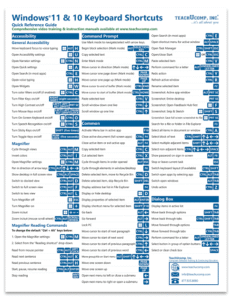
Mastering keyboard shortcuts is one of the easiest ways to reclaim lost time and supercharge your daily workflow. While everyone knows the basics like copy and paste, Windows is packed with powerful, lesser-known shortcuts that can instantly streamline how you manage windows, virtual desktops, screenshots, and system tasks.
If you spend your day clicking endlessly across menus, learning these shortcuts will transform how you interact with your computer. Here are 10 hidden Windows shortcuts that will save you hours of repetitive clicking and help you work smarter.
1. Reopen Accidentally Closed Tabs: Ctrl + Shift + T
We have all been there—you accidentally close a browser tab you spent ten minutes finding, or close your browser entirely. Instead of scrambling through your history or trying to remember the URL, press Ctrl + Shift + T to instantly restore the last closed tab. You can press it multiple times to reopen several recently closed tabs in succession across most major web browsers, saving you precious minutes of searching.
2. Snap Windows with Precision: Windows Key + Arrow Keys
Instead of manually dragging window borders to fit your screen, use the Windows key paired with your arrow keys for instant multi-tasking layouts.
-
Pressing
Windows Key + Left ArroworRight Arrowsnaps the active window to either half of your screen. -
Following it with the
Up ArroworDown Arrowmoves it neatly into a quarter-screen corner. This is an absolute game-changer for writers, researchers, and multitaskers who want a clean screen without installing a complicated window management software.
3. Master Your Clipboard History: Windows Key + V
The standard clipboard only remembers the single item you copied last, meaning if you copy something new, your previous text is lost forever. By pressing Windows Key + V for the first time, you can enable Clipboard History. After that, this shortcut opens a convenient popup menu showing everything you have copied recently—text snippets, web links, and even images—allowing you to paste older items with a single click whenever you need them.
4. Advanced Screenshot Utility: Windows Key + Shift + S
Forget opening a separate snipping tool application or trying to find your keyboard’s confusing print screen key. Pressing Windows Key + Shift + S immediately dims your screen and brings up a precision capture menu at the top. You can choose to capture a rectangular snippet, a freeform shape, a single application window, or your entire desktop directly to your clipboard, ready to paste into documents or chat windows.
5. Access the Secret Power User Menu: Windows Key + X
If you want quick access to core system tools like Device Manager, Disk Management, Task Manager, and PowerShell without digging through the standard settings app or searching through menus, press Windows Key + X. It pulls up a clean text-based menu right above your Start button, giving you lightning-fast access to the tools technicians use every day for system navigation and troubleshooting.
6. Create and Switch Virtual Desktops: Windows Key + Ctrl + D & Windows Key + Ctrl + Left/Right
If your taskbar is cluttered with open apps from completely different projects, virtual desktops help keep your workspace organized and stress-free.
-
Press
Windows Key + Ctrl + Dto instantly create a brand-new, clean virtual desktop. -
Use
Windows Key + Ctrl + Left ArroworRight Arrowto seamlessly glide between your active desktops. Keep your personal apps on one desktop and your work projects on another without overlapping chaos.
7. Instantly Open the Emoji & Symbol Panel: Windows Key + . (Period)
Whether you are writing professional emails, adding personality to chat messages, or drafting casual social media posts, searching for symbols or emojis online can slow you down. Pressing Windows Key + . (or the semicolon key) opens an extensive built-in panel containing emojis, GIFs, kaomoji, and special unicode symbols ready to insert anywhere without needing an internet connection.
8. Lock Your PC Instantly: Windows Key + L
Leaving your desk for a quick coffee break or lunch? Never leave your workstation unprotected. A single press of Windows Key + L instantly locks your PC and brings you right back to the lock screen, keeping your confidential files, open documents, and active sessions completely secure from prying eyes while you are away.
9. Minimize Everything in a Flash: Windows Key + D
When your desktop is completely overrun with a dozen open windows, web browsers, and folders, trying to minimize them one by one is exhausting. Pressing Windows Key + D instantly drops all open windows to reveal your clean desktop wallpaper, and pressing it a second time restores them all right where they were. It is the ultimate quick-exit button for a cluttered screen.
10. Open Task Manager Directly: Ctrl + Shift + Esc
When an application freezes up or stops responding, most people reach for Ctrl + Alt + Delete and then have to click through an extra menu to find the Task Manager. You can bypass the middleman entirely by pressing Ctrl + Shift + Esc, which launches the Task Manager directly onto your screen so you can find the culprit and force-close unresponsive software in a fraction of a second.